

26 Aug 2026

Microsoft’s new commercial pricing took effect on 1 July 2026, and most organizations did not feel it that day. They feel it on their renewal date, when the subscription rolls over and the invoice carries a number nobody modeled. Office 365 E3 moved from $23.00 to $26.00 per user per month; Microsoft 365 E3, from $36.00 to $39.00; and frontline plans rose far more.
The percentage is not the real problem. Microsoft has raised commercial prices only twice since Office 365 launched, so a one-off adjustment is survivable. What hurts is paying a higher rate on a licensed estate nobody has examined, where seats stay assigned to people who left eighteen months ago and add-ons bill for capability the suite already includes.
Renewal is the moment to fix that for a specific commercial reason. Seat counts on most agreements can be reduced at renewal but not mid-term, so a license found unused in month four of a twelve-month commitment is money already spent, while the same discovery ninety days out is money you keep. Renewal is also the only point at which plan mix, term length, billing frequency and contract vehicle are all negotiable at once.
TL;DR
The Increase Lands on Your Renewal Date, Not July 1
Microsoft's July 2026 pricing raised most commercial suites, with Office 365 E3 up 13% and frontline plans up by as much as a third. The increase reaches you at renewal rather than on the announcement date and applies to every seat you own, used or not.
Why Cutting Seats Is Harder Than It Looks
Seat counts move at renewal and nowhere else, so a surplus found mid-term is money already spent. The harder question is which seats are genuinely surplus, since sign-in reports miss shared accounts, and dropping a tier can quietly remove a compliance control nobody documented.
Audit First, Then Right-Size, Then Govern
Nine sequenced levers, from usage auditing and add-on cleanup through group-based licensing and joiner-mover-leaver fixes, typically recover 15% to 30% of annual Microsoft 365 spend. Map compliance requirements before downgrading anything, then set the review cadence that holds those savings through the next renewal.
The Short Answer
Microsoft 365 license optimization means matching what you buy to what your people actually use and what your risk profile genuinely requires. Most organizations that have not run a structured review are carrying 15% to 30% in recoverable annual license spend. The nine levers that recover it are audit real usage; remove inactive and duplicate accounts; right-size by role; move plans and contract terms; retire overlapping add-ons; automate assignment through groups; close joiner-mover-leaver gaps, map compliance requirements before downgrading; and put a continuous review cadence in place. Start 90 to 120 days before your renewal date.
What Is Microsoft 365 License Optimization?
Microsoft 365 license optimization aligns what an organization buys with what its people demonstrably use and what its obligations require. Three inputs drive it: measured usage of the services inside each plan, the security and compliance duties attached to particular roles or data types, and the commercial structure of the agreement.
The distinction between reduction and optimization matters more than it sounds. License reduction is subtraction: someone runs a report, finds 400 seats with no sign-in activity, removes them and reports the saving. The number looks good, and the approach carries real risk, because sign-in data alone cannot tell you whether a seat belongs to a service account, a shared mailbox, or a worker on unpaid leave. Optimization asks a harder question. Rather than "Which seats can we cut?" it asks, "What is the correct entitlement for each population?" Answering that produces mixed outcomes. Some seats are removed, some move down a tier, some move up because a group handling regulated data was underprotected, and some add-ons are retired because a suite upgrade absorbed them.
| Factor | License reduction | License optimization |
|---|---|---|
| Question asked | Which seats can be removed? | What does each user group actually need? |
| Evidence used | Sign-in or assignment reports | Service-level usage, role requirements, data classification, contract terms |
| Typical outcome | Fewer seats, same structure | Right-sized mix, retired add-ons, some upgrades |
| Risk profile | Removes controls without visibility | Every change traces to a documented rationale |
| Durability | Waste returns within two or three quarters | Governance holds the estate between renewals |
Cheaper plans, in isolation, are not optimization either. Downgrading a compliance team from E5 to E3 saves $21 per user per month and removes eDiscovery Premium, Insider Risk Management, Customer Lockbox and advanced audit retention, and buying those back as add-ons evaporates the savings.
How Much Can Businesses Save Through License Optimization?
Savings depend on how recently the estate was reviewed and how heavily it leans on premium plans.
| Starting position | Typical recoverable spend | Where it comes from |
|---|---|---|
| Never formally audited | 20% to 30% | Orphaned seats, add-on overlap, uniform premium licensing |
| Reviewed once, no governance since | 12% to 20% | Leaver backlog, role drift, unused add-ons |
| Group-based licensing and quarterly reviews in place | 3% to 8% | Plan-mix refinement, term and billing changes |
A worked example helps. An organization with 1,000 Microsoft 365 E3 seats pays $468,000 a year at post-July-2026 list pricing. Recovering 18% through reclaimed seats, retired add-ons, and a shift to annual billing returns roughly $84,000 a year, compounding across a three-year term.
Why Microsoft 365 Costs Keep Rising: What Changed on 1 July 2026
Microsoft announced a combined pricing and packaging update on 4 December 2025, with the pricing element taking effect on 1 July 2026 for new and renewing customers globally. Existing customers stay on their previous rate until their next renewal after that date, which is why many organizations are only now encountering the change. Published list prices, in US dollars per user per month on annual commitment for Teams-inclusive SKUs, moved as follows.
| Plan | Previous | From 1 July 2026 | Change |
|---|---|---|---|
| Office 365 E1 | $10.00 | $10.00 | No change |
| Office 365 E3 | $23.00 | $26.00 | +13% |
| Office 365 E5 | $38.00 | $41.00 | +8% |
| Microsoft 365 E3 | $36.00 | $39.00 | +8% |
| Microsoft 365 E5 | $57.00 | $60.00 | +5% |
| Microsoft 365 Business Basic | $6.00 | $7.00 | +16% |
| Microsoft 365 Business Standard | $12.50 | $14.00 | +12% |
| Microsoft 365 Business Premium | $22.00 | $22.00 | No change |
| Microsoft 365 F1 | $2.25 | $3.00 | +33% |
| Microsoft 365 F3 | $8.00 | $10.00 | +25% |
Standalone components moved too. Windows Enterprise per device rose from $5.85 to $7.63 and Microsoft 365 Apps for Business from $8.25 to $10.00, with Enterprise Mobility + Security, Windows E3 and E5, and Entra ID P1 and P2 also affected. Standalone Teams and Copilot licences were excluded, as was Microsoft 365 E7, released on 1 May 2026 at $99.00. Published list prices vary by region, currency and agreement, so verify your own against the official Microsoft 365 pricing and packaging update.
Alongside the increase, Microsoft added capability to most suites at no extra charge, completing by 1 August 2026. Office 365 E3 and Microsoft 365 E3 gained Defender for Office 365 Plan 1; Intune Remote Help, Advanced Analytics and Plan 2 were added across qualifying suites; E5 picked up Endpoint Privilege Management, Cloud PKI, and Enterprise Application Management; and the Business plans each received 50GB more email storage and time-of-click URL protection.
Two further factors change the arithmetic for larger estates. Enterprise Agreement volume discounting has been reduced, pushing the effective increase above the headline SKU percentage, and the shift to the Microsoft Customer Agreement for Enterprise alters how commitments, true-ups and term flexibility work.
Why Businesses Overspend on Microsoft 365 Licenses

Overspend is structural rather than accidental, and seven patterns account for most of what surfaces in the pre-renewal reviews Calance runs for clients.
Unused and orphaned seats. Leavers never reclaimed, contractors whose engagements ended, service accounts on full user licenses, and duplicates created during a migration. In estates never audited, the combined figure commonly sits between 5% and 15% of assigned seats.
Poor visibility. Larger organizations run multiple tenants, several purchasing channels and a mix of enterprise agreements and CSP subscriptions inherited through acquisitions, and no single report shows the consolidated position.
Role changes that never reach the license. An employee moves from a field role to a head-office analyst position. The new role needs different tools, the old entitlement stays attached, and a second license is added rather than the first being reassigned.
Shadow IT and departmental purchasing. A marketing team buys its own Business Standard subscription because procurement felt slow and finance adds Power BI Pro seats directly. Each purchase clears on a corporate card and stays invisible until renewal exposes it.
Incorrect assignment at provisioning. Where new starters are created from a single default template, everyone receives the same entitlement regardless of role, and the mismatch persists for the length of their employment.
Absent governance. Without a named owner, a review cadence and a documented policy mapping roles to plans, license decisions default to whoever raises the ticket.
Over-provisioned premium plans. E5 is frequently deployed organization-wide to simplify administration. Paying $60 per user per month across 2,000 seats when 400 need the advanced security stack is among the most expensive habits in enterprise licensing.
Microsoft 365 License Types and What Each One Costs You
Savings come from matching populations to plans rather than negotiating discounts, which makes plan families worth understanding properly.
Business plans cap at 300 seats. Basic covers web and mobile apps with Exchange, Teams, SharePoint and OneDrive; Standard adds desktop applications; Premium adds Entra ID P1, Intune, Defender for Business and information protection and is held flat at $22.00 in July 2026, improving its relative value considerably.
Enterprise plans carry no seat cap. Office 365 E1, E3, and E5 cover productivity and collaboration; Microsoft 365 E3 and E5 add Windows Enterprise and Enterprise Mobility + Security to the same base; Microsoft 365 E7 sits above E5 at $99.00 per user per month.
Frontline plans suit shift-based and deskless workers. F1 provides Teams and SharePoint access without a mailbox; F3 adds a 2GB mailbox and web and mobile Office apps. Both saw the steepest increases in 2026, though both remain far cheaper than E3 for deskless populations.
Microsoft 365 E3 vs E5: What the $21 Gap Buys
| Capability | E3 | E5 |
|---|---|---|
| Defender for Office 365 | Plan 1 (added July 2026) | Plan 2 |
| Defender for Endpoint | Plan 1 | Plan 2 |
| Defender for Identity and Cloud Apps | Not included | Included |
| Entra ID | P1 | P2, with risk-based access |
| Purview eDiscovery | Standard | Premium |
| Insider Risk and Communication Compliance | Not included | Included |
| Power BI Pro and Audio Conferencing | Not included | Included |
Whether the gap is worth paying depends on how many of those capabilities are deployed, configured and monitored. An E5 estate where Defender for Endpoint is unconfigured and Purview has never been opened is an expensive way to buy Power BI Pro. The defensible outcome is usually tiered: E5 for security, legal, finance and executives; E3 for the general workforce; and F3 for frontline staff.
Security and compliance requirements should be mapped before any downgrade is approved, since data residency obligations, regulated retention periods, eDiscovery capability and conditional access policies dependent on Entra ID P1 or P2 all constrain which plans are viable. Establishing those constraints first is where cybersecurity services and licensing work need planning together rather than sequentially.
9 Ways to Optimise Microsoft 365 Licenses and Reduce Seat Spend Before Renewal
The nine strategies run roughly in sequence, since earlier steps produce the evidence later ones depend on. Each entry sets out what the lever is, why organizations miss it, how to execute it, what to avoid, and what the numbers look like in practice.
1. Audit Current Microsoft 365 License Usage
Best for: every organisation, before any other step | Typical recovery: 5% to 15% of assigned seats
A license audit establishes what you own, what is assigned and what is genuinely used at the service level rather than the whole plan. Assignment tells you a seat is allocated; usage tells you whether the person opened Teams, sent mail or touched SharePoint in the last 90 days.
Organizations skip it because the data feels like it should already exist. Billing shows what finance pays, and the admin center shows what is assigned, but neither reconciles to service-level activity without effort.
How to do it
- Export licence assignments and subscriptions from every tenant and purchasing channel
- Pull service-level usage across at least 90 days, ideally 180, so quarterly closes and extended leave do not distort the picture
- Disable name concealment first, since Microsoft 365 admin centre usage reports hide user and site names by default
- Reconcile against the HR roster so leavers, contractors and absentees are identified explicitly
Avoid: treating a sign-in report as proof of inactivity. Service accounts, shared mailboxes and users on extended leave all look dormant and all have legitimate reasons to retain entitlements.
In practice: a 1,200-seat manufacturer began a review believing it held 1,200 E3 licences. Reconciliation across two inherited tenants found 1,340 purchased, 1,187 assigned, and 96 of those on accounts with no activity in six months, invoiced quietly for two renewal cycles.
2. Identify Inactive, Duplicate and Underutilised Users
Best for: estates that have grown through acquisition or high contractor turnover | Typical recovery: 3% to 10% of annual spend
Inactive accounts are the visible layer. Underneath sit duplicates from migrations, guests converted to licensed users, and staff holding a premium licence while using a fraction of it.
Underutilisation is the category organisations consistently miss, because the account looks healthy. The user signs in daily and joins Teams calls, while never opening Power BI, never touching Purview and holding no device in Intune, on an E5 licence bought for exactly those capabilities.
How to do it
- Sort every user into four segments: fully active on premium services, active on core services only, minimally active, dormant
- Treat the second segment as the primary target, since it never appears in a binary active-or-inactive view
- Match duplicates across tenants by employee ID rather than display name, and sequence identity cleanup ahead of licence changes
Avoid: merging or removing identities before checking what depends on them, since mailbox access, OneDrive content, Teams membership and application authentication all break together.
In practice: a professional services firm running 800 E5 seats found 512 users with no activity in any advanced security or compliance workload over six months. Moving them to E3 while retaining E5 for legal, finance, IT and the executive team cut annual spend by roughly $129,000.
3. Right-Size Licences Based on Actual Requirements
Best for: organisations running a single plan across the whole workforce | Typical recovery: 15% to 25% of annual spend
Right-sizing maps populations to plans by role, workload and risk exposure rather than the habit of giving everyone the same thing, producing a model a new joiner slots into without a judgement call.
Standardisation is why organisations resist it, since one plan is simpler to administer. The problem is scale: simplicity costing $21 per user per month across 2,000 users is a $500,000 annual decision.
How to do it
- Define personas from three inputs: functional need, data sensitivity and device model
- Expect four to six to cover the full workforce, each with a target plan and documented reasoning
- Rebuild provisioning around the personas, or the model decays within two quarters
Avoid: pushing users into frontline plans without checking functional limits. Moving a supervisor who needs a full mailbox to F1 creates a support ticket rather than a saving.
In practice: a distribution business with 2,400 staff built five personas: knowledge workers on E3, security and compliance roles on E5, warehouse and driver populations on F3, kiosk-based shift workers on F1, and contractors on Business Basic in a separate tenant. Annual spend fell 22% against the previous all-E3 model.
4. Move Users to More Cost-Effective Plans and Terms
Best for: organisations with multiple agreements or monthly billing | Typical recovery: 5% to 15% of annual spend
Plan movement covers three levers: tier changes, term length and billing frequency, each negotiable at renewal and fixed in between.
Term and billing are most often left on the table. Paying monthly on an annual-term subscription carries a premium of around 5%, which on 1,000 E3 seats approaches $23,000 a year for flexibility finance may not require.
How to do it
- Confirm the renewal date on every agreement and consolidate onto one where possible
- Compare monthly against annual billing at your actual seat count
- Evaluate three-year terms for E3 and E5 in CSP where headcount is stable, since they lock rates against future increases
- Execute reductions inside the renewal window, since mid-term reductions are generally not permitted
Avoid: modelling only the headline gap. Moving from E5 to E3 removes Power BI Pro and Audio Conferencing alongside the security stack, and buying either back can consume much of the saving.
In practice: a healthcare provider with 3,000 seats consolidated three inherited agreements into a single renewal date, moved from monthly to annual billing, and reduced its E5 population from 3,000 to 640. The combined annual saving exceeded $1.6 million.
5. Remove Unused Add-Ons and Overlapping Premium Features
Best for: every organisation renewing after July 2026 | Typical recovery: 2% to 8% of annual spend, recoverable in days
Add-on subscriptions accumulate because they are bought to solve a specific problem at a specific moment, and nothing later prompts a review. A department needed Power BI Pro for a 2023 project; security bought Defender for Office 365 Plan 1 before the suite included it; both keep billing.
The July 2026 packaging update made the overlap worse, or better depending on how quickly it is acted upon. Defender for Office 365 Plan 1 now ships inside Office 365 E3 and Microsoft 365 E3, Intune Plan 2, Remote Help and Advanced Analytics were added across qualifying suites, and E5 gained Endpoint Privilege Management, Cloud PKI and Enterprise Application Management.
How to do it
- Export every active subscription with the service plans it contains
- Compare each against current suite contents, using Microsoft’s packaging update FAQ as the reference
- Flag add-ons attached to closed projects, and check cancellation terms before removing anything bought through a separate channel
Avoid: disabling service plans without checking dependencies, since one component can silently break another.
In practice: an engineering firm with 600 E3 seats found $47,000 of annual add-on spend that had become redundant: Defender for Office 365 Plan 1 across the estate and Intune Plan 2 across a 200-user subset, neither reviewed since purchase.
6. Automate Licence Management With Group-Based Licensing
Best for: any estate above roughly 500 seats | Typical recovery: prevents 4% to 8% of annual waste from recurring
Manual licence administration does not scale. One administrator assigns a licence at onboarding, another removes one when a ticket arrives, and nobody owns the space between.
Group-based licensing fixes the gap. Rather than assigning products to individuals, licences attach to Entra ID security groups: add a user to the Finance group and the correct plan arrives within minutes, remove them and the licence releases.
How to do it
- Create one security group per persona and attach the target plan to each
- Use dynamic membership driven by HR attributes so promotions update entitlements without a ticket
- Follow Microsoft’s guidance on assigning licences to user accounts and, at scale, the PowerShell and Graph examples
- Remove direct assignments after migrating, since users can hold both and the direct one keeps consuming a seat invisibly
Avoid: automating on top of poor HR attribute data, which industrializes the error rather than fixing it.
In practice: a logistics group with 1,800 seats moved to group-based licensing across eleven personas, cutting provisioning time from four days to under an hour while unassigned seats fell from 9% to 2%. Folding the reporting into existing IT infrastructure and operations monitoring avoided another dashboard nobody opens.
7. Close the Joiner, Mover and Leaver Gaps
Best for: organisations with high turnover or seasonal hiring | Typical recovery: 3% to 7% of annual spend
Joiner, mover and leaver processes are where license waste is manufactured. Every gap between an HR event and the license change becomes a seat billed for nothing, and the leaver gap never self-corrects.
A single default onboarding template is the usual culprit for joiners, since new starters receive the same entitlement regardless of role. Movers are subtler, because internal transfers add entitlements without removing previous ones.
How to do it
- Route provisioning through the persona model so role determines plan at creation
- Drive mover changes through group membership rather than manual tickets
- Define a leaver reclamation window, typically 30 days: convert the mailbox to shared, apply retention to OneDrive content, release the licence
- Measure the current gap first, since the baseline is usually worse than expected
Avoid: setting a reclamation window before checking legal hold and retention obligations, which constrain how quickly licences can be released.
In practice: a financial services organisation measured the gap first. Median time between a leaver’s last working day and licence reclamation was 94 days across roughly 340 departures a year, an exposure near $34,000 annually at E3 rates. The fix required no new tooling, only a defined process and an owner.
8. Map Security and Compliance Requirements Before Downgrading
Best for: regulated sectors and any organisation planning a tier reduction | Typical outcome: protects the saving rather than creating one
Every downgrade removes capability, and whether that is acceptable depends on obligations sitting outside IT, which is why the review belongs before the plan change.
Cost pressure at renewal is what pushes organisations to skip it. The saving is quantified and visible, the risk is neither, so the change proceeds and the control gap surfaces during an audit months later.
How to do it
- List the regulatory frameworks that apply and what each mandates for retention and audit
- Identify which roles handle regulated data and which conditional access policies depend on Entra ID P1 or P2
- Establish a minimum viable entitlement per segment, then reduce only to that floor
- Treat upgrades as part of the same exercise, since reviews often surface under-protected groups
Avoid: leaving the reasoning undocumented, because audit questions arrive long after the change was made.
In practice: one pharmaceutical pre-renewal review moved 1,340 users down from E5 to E3 while moving 87 clinical data roles up from E3 to E5, because Insider Risk Management was absent where regulated data was handled daily. Net spend still fell 19%. Copilot raises the same questions in newer form, since permission sprawl and inconsistent labelling determine what the service can surface, which our guidance on Copilot readiness and governance covers alongside licensing decisions.
9. Build a Continuous Licence Optimisation Framework
Best for: organisations that have already run one optimisation exercise | Typical outcome: holds recovered savings instead of losing them by the next renewal
Point-in-time optimisation decays. An organisation that removes 400 surplus seats and changes nothing structurally accumulates a comparable surplus within two to three quarters, because the processes that produced the waste are still running.
How to do it
- Name an individual accountable for licence position, with a defined line into procurement
- Set the cadence: monthly reclamation, quarterly plan-mix and add-on review, full audit before each renewal
- Define thresholds that trigger action, such as unassigned seats above 3% or users inactive for 60 days
- Report quarterly on licences owned against assigned against active, cost by department, and forecast
Avoid: building the framework around one person. A documented policy, defined personas, automated assignment and scheduled reporting are what let the model survive a change of staff.
In practice: a construction group with 4,100 seats across five operating companies established quarterly reviews after an initial optimization program. Over eighteen months the unassigned pool stayed below 2% against a starting position of 11%, and the next renewal was negotiated from a validated forecast.
How to Conduct a Microsoft 365 License Audit Before Renewal
A structured audit takes four to six weeks for a mid-sized estate, and starting 90 to 120 days ahead of renewal leaves room to act on the findings. The sequence below is the one Calance uses on client engagements.
Step 1: Collect the data. Export license assignments, subscriptions and billing records across every tenant and purchasing channel; pull service-level usage for at least 90 days; and obtain the current HR roster.
Step 2: Analyze usage by service. Move past sign-in data to activity within each workload, since Exchange, Teams, SharePoint, OneDrive, Intune enrollment, Power BI, and the Defender and Purview stacks each tell you something different.
Step 3: Segment users. Group the estate by department, role, device model and data sensitivity, then overlay the usage analysis, which turns thousands of records into a small number of decisions.
Step 4: Review add-on usage. List every add-on with its service plans and compare against current suite contents, identifying overlaps created by the 2026 packaging changes and subscriptions attached to closed projects.
Step 5: Map compliance requirements. Document, per segment, the obligations, retention requirements, conditional access dependencies and eDiscovery needs that constrain plan choice.
Step 6: Plan reassignment and execution. Build the target state, sequence the changes, and identify which must land before renewal. Reassign rather than repurchase wherever a released seat covers a pending request, and brief affected users where applications or mailbox size change.
Microsoft 365 License Management Tools Compared
Tooling should follow the size and complexity of the estate, not the other way round.
| Approach | Best suited to | Strengths | Limitations |
|---|---|---|---|
| Microsoft 365 admin centre | Under roughly 500 seats, single tenant | No cost, no setup, adequate for assignment and basic usage reporting | Reports capped at 180 days, limited cross-tenant view, manual analysis |
| Microsoft Graph reports API | Estates needing custom or scheduled reporting | Programmatic access to service-level data, integrates with existing tooling | Requires development effort and maintenance |
| Power BI dashboards | Multi-department estates needing recurring visibility | Combines licence, usage and HR data, presents cost by business unit | Requires a data model and an owner |
| Third-party SAM platforms | Large or multi-tenant estates, wider SaaS portfolios | Automated reclamation, cross-vendor visibility, policy enforcement | Cost of the tool, implementation effort |
| Automated governance workflows | Any estate with high joiner and leaver volume | Prevents waste rather than reporting it, scales without headcount | Depends on accurate directory and HR data |
For many mid-sized estates, Calance recommends the admin center plus a well-built Power BI model rather than additional licensing. Third-party platforms earn their cost across multiple tenants or a broader SaaS portfolio. Overlaps with adjacent platforms are worth checking at the same time. Organizations running virtual desktops should confirm eligibility before adding entitlements, since Azure Virtual Desktop rights are already included in Microsoft 365 E3, E5, Business Premium and Windows Enterprise E3 and E5. Comparable overlaps exist across Azure managed services.
Common Microsoft 365 License Optimization Mistakes
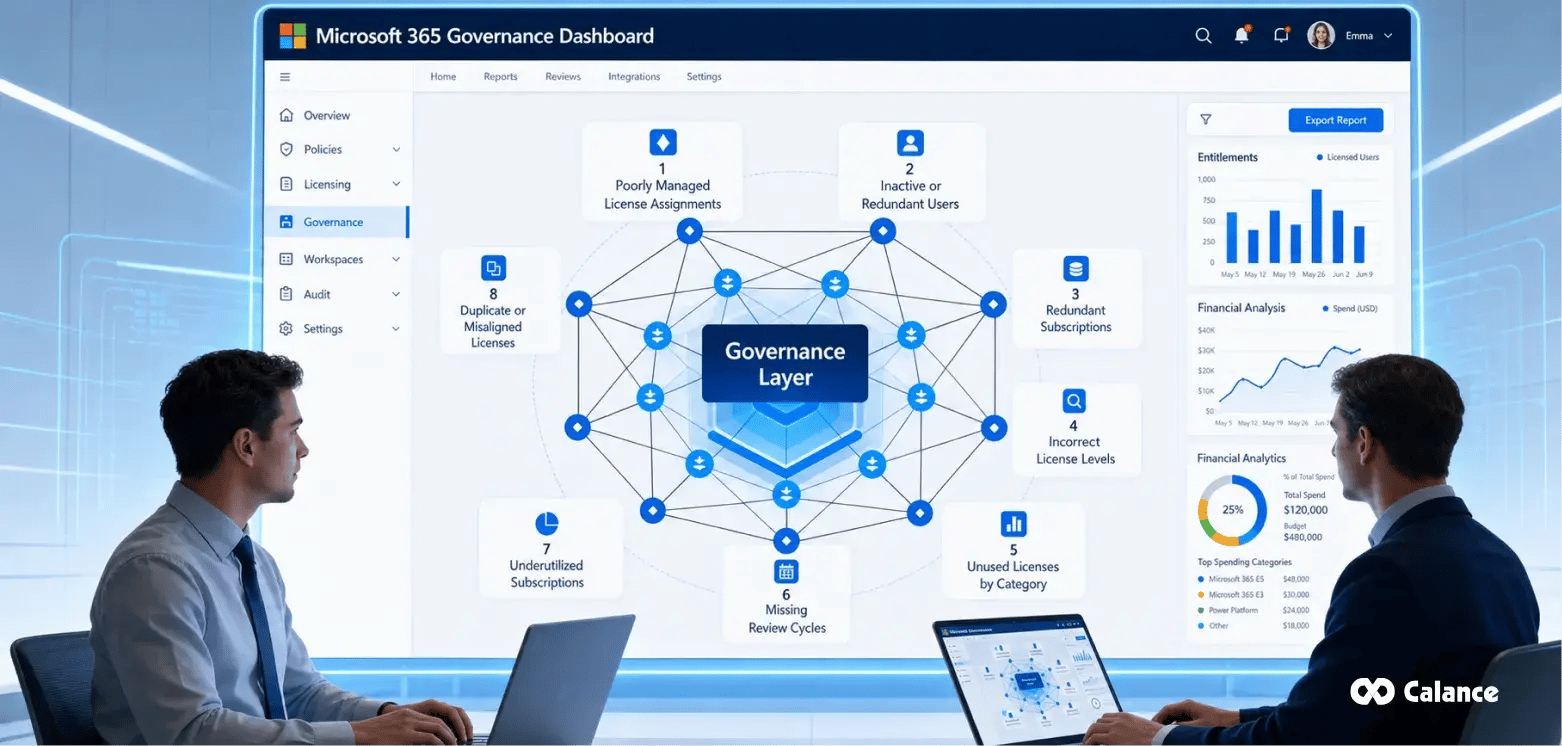
Reducing licenses without understanding the requirement. Removing seats on a usage report alone catches service accounts, shared resources and staff on leave, so validate against HR data and departmental input first.
Removing security capability by accident. Downgrading a plan removes the controls inside it, and where nobody has documented which policies, retention rules or protections depend on a given tier, the gap only appears during an incident.
Ignoring compliance obligations. Retention periods, eDiscovery capability, data residency and audit log retention are regulatory commitments, and changes that breach them create exposure dwarfing the license savings.
Tracking manually. Spreadsheet-based license management is accurate the day it is produced and wrong within a fortnight, and the effort grows faster than the estate.
Optimizing once. A single pre-renewal exercise delivers a visible saving and no lasting change, and without ownership, cadence and automated assignment, the estate drifts back.
Pre-Renewal Checklist: A 120-Day Timeline
120 days out
- Confirm the exact renewal date and current contract vehicle for every agreement
- Name an owner for the review and agree the reporting format with finance
- Begin data collection across all tenants and purchasing channels
90 days out
- Complete service-level usage analysis across a minimum of 90 days
- Reconcile assignments against the HR roster and flag service and shared accounts separately
- Map regulatory and contractual obligations to user segments
60 days out
- Define four to six personas and assign a target plan to each
- Test every add-on subscription against current suite contents
- Model the July 2026 pricing against your specific SKU mix, including monthly against annual billing and available term lengths
30 days out
- Execute reclamation of leaver, dormant and duplicate accounts
- Confirm group-based licensing is in place and direct assignments removed
- Produce a forecast seat requirement by plan and document the rationale behind every change
- Brief affected users ahead of any change to applications or mailbox capacity
At renewal and beyond
- Set the ongoing cadence: monthly reclamation, quarterly plan-mix review
- Schedule the next full audit against the following renewal date
When to Bring in Microsoft 365 Consulting Support
Plenty of organisations run this work internally and run it well, so external support earns its place in specific conditions rather than by default.
Scale. Beyond roughly 1,000 seats, particularly across multiple tenants or inherited agreements, reconciliation becomes a project rather than a task.
Licensing complexity. Estates combining Enterprise Agreement and CSP subscriptions, mixed suite and add-on entitlements, or a move to the Microsoft Customer Agreement for Enterprise carry nuance that is expensive to learn on the job.
Hybrid environments. On-premises Exchange or SharePoint, hybrid identity and Azure workloads interact with entitlements in ways the admin centre does not show.
Regulated or global operations. Compliance work shifts the constraint from finding the saving to proving a change preserved a control, and global estates add regional pricing variation inside a single tenant.
Transformation programmes. A cloud migration, a SharePoint consolidation or a Windows 11 endpoint modernisation all change entitlement requirements while in flight. Calance has worked inside the Microsoft ecosystem for more than 25 years, and license reviews form part of how we run Microsoft 365 services for clients rather than a separate engagement. Our approach starts with the audit, sets the security and compliance floor before any commercial recommendation, and hands back a governance model the internal team can operate, sitting alongside Microsoft cloud consulting where the wider estate is in scope.
Bringing the Work Together
Renewal is a fixed date, and leverage shrinks as it approaches. Ninety days out, an organisation can audit, model, negotiate and reduce. Thirty days out, the options narrow to accepting the forecast in front of it. A week after, the numbers are set for another year.
None of the nine strategies depends on specialist tooling or a large programme budget. What they depend on is starting early enough to gather real evidence, looking at compliance requirements before commercial ones, and building governance that holds the position between renewals. If your renewal falls in the next two quarters, the audit is the place to start, because everything else follows from knowing what you actually own.
FAQs
1. Can Microsoft 365 licenses be transferred between employees?
Yes. A license reclaimed from a departing employee can normally be reassigned to another user. Before transferring it, preserve any mailbox, OneDrive, retention, or legal-hold data associated with the previous employee’s account.
2. Does Microsoft 365 license optimization cause downtime for users?
A properly planned optimization should cause little or no downtime. However, changing plans can temporarily affect application access, mailbox capacity, or security features. Testing each user persona and communicating planned changes helps prevent disruption.
3. Can different Microsoft 365 plans be used within the same organization?
Yes. Organizations can combine business, enterprise, frontline, and standalone licenses when eligibility requirements are met. A mixed-plan environment is often more economical because employees receive entitlements aligned with their roles, devices, and security needs.
4. How does Microsoft Copilot affect Microsoft 365 licensing costs?
Microsoft 365 Copilot is generally licensed separately from eligible Microsoft 365 subscriptions. Before purchasing it broadly, confirm user eligibility, business use cases, adoption readiness, data permissions, and expected productivity benefits through a controlled pilot program.
5. Can temporary workers receive short-term Microsoft 365 licenses?
Yes, but the appropriate purchasing model depends on contract length and anticipated turnover. Monthly commitments may suit short engagements, while reusable license pools can support predictable contractor rotation without placing temporary workers on unnecessarily expensive annual subscriptions.
6. What happens when a Microsoft 365 plan is downgraded?
The user loses access to capabilities excluded from the lower plan. Depending on the change, this could affect desktop applications, mailbox capacity, security controls, analytics, device management, or compliance features. Dependencies should therefore be tested beforehand.
7. Can shared computers reduce Microsoft 365 licensing costs?
Shared computer activation can support eligible users who access Microsoft 365 Apps from shared devices, but it does not eliminate user licensing requirements. Each person must still hold an appropriate license permitting shared computer activation.
8. Are Microsoft 365 licenses charged differently across countries?
Pricing, taxes, currencies, purchasing channels, and available agreements can vary by market. Global organizations should compare regional subscriptions carefully while considering tenant design, data residency, local procurement rules, and Microsoft’s restrictions on cross-region purchasing.
9. How can departments be charged for their actual Microsoft 365 usage?
Create a chargeback or showback model that assigns license costs by department, cost center, or business unit. Combine subscription, assignment, and HR data so leaders can see unused capacity and approve entitlement changes responsibly.
10. Can license optimization improve Microsoft 365 adoption?
Yes. Usage analysis can reveal employees who own valuable applications but rarely use them. Organizations can then provide targeted training, remove access that is genuinely unnecessary, or redesign workflows so existing capabilities deliver greater operational value.
11. Who should approve Microsoft 365 license changes?
Approval should involve IT, procurement, finance, security, and the relevant business owner. Legal or compliance teams should participate when changes affect retention, investigation, privacy, or regulatory controls. Defined approval thresholds help prevent delays and undocumented decisions.
12. How should licenses be managed after a merger or acquisition?
Start by inventorying every tenant, contract, reseller relationship, user identity, and subscription. Identify duplicate accounts and overlapping services before consolidation. Avoid immediate plan changes until migration dependencies, identity architecture, compliance requirements, and renewal dates are understood.
13. Can Microsoft 365 trial licenses create unexpected costs?
Trials can become chargeable subscriptions or encourage teams to adopt features requiring permanent licensing. Record every trial’s owner, purpose, expiry date, and conversion terms, then review usage before approving payment or expanding access across the organization.
14. What information should a Microsoft 365 optimization report include?
The report should document current subscriptions, assignments, workload usage, redundant add-ons, entitlement risks, recommended changes, projected savings, implementation priorities, and accountable owners. It should also distinguish immediate savings from opportunities requiring contractual or technical changes.
15. How is the success of license optimization measured?
Measure savings against the pre-optimization baseline while tracking active-use rates, unassigned inventory, reclamation time, plan distribution, add-on adoption, and control exceptions. Successful optimization lowers total cost without increasing support incidents, audit findings, or user disruption.
Let’s Build Your Digital Future Together
Tell us about your business challenges — we’ll help craft the right solutions.
Book a Free Consultation →